 support@rbplugins.com
Simplify your WordPress workflow!
Build faster, cleaner, and more reliable WordPress websites using lightweight plugins designed for real-world workflows.
Get started now
Duplication profiles in Duplicate Post RB allow you to save and reuse different duplication configurations.
Each profile defines its own set of options, such as which elements are copied, naming rules, and hierarchy behavior. Profiles make it easy to adapt duplication behavior to different workflows without constantly changing settings.
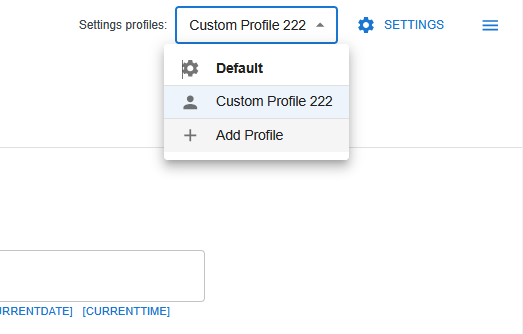
A duplication profile is a named set of duplication settings.
Each profile:
This allows you to create separate profiles for blogs, landing pages, templates, or custom post types.
Duplicate Post RB includes a built-in Default profile.
The Default profile ensures that duplication is always available, even if no custom profiles are created.
You can create a new duplication profile in several ways:
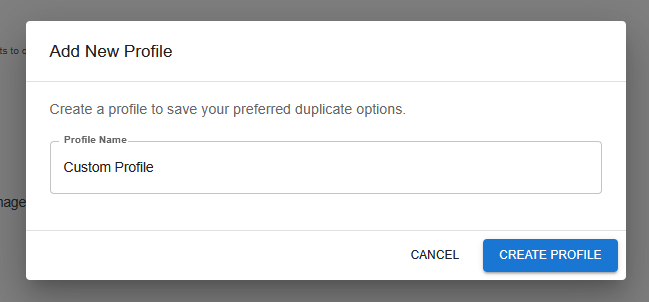
Profiles can also be added using the additional menu in the plugin interface.
Both methods open the same profile creation dialog.
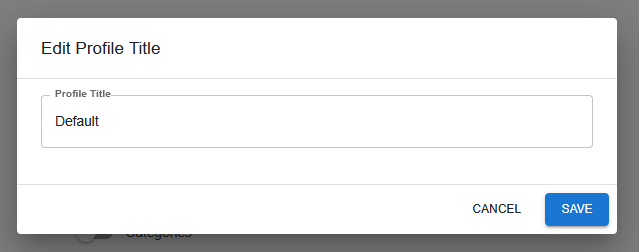
Each profile can be renamed at any time.
To edit a profile name:
The Default profile can also be renamed, but it cannot be deleted.
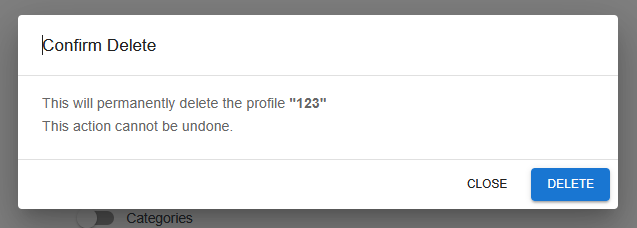
To delete a profile:
This helps prevent accidental removal of the base duplication configuration.
Each duplication profile has its own independent configuration, including:
Changes made in one profile do not affect other profiles.
This allows you to fine-tune duplication behavior for different use cases.
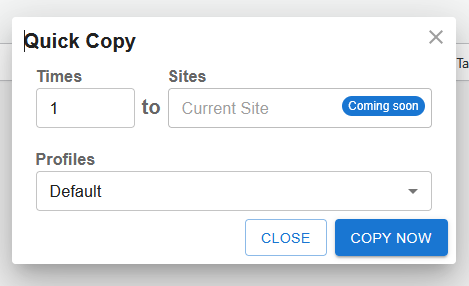
You can choose which profile to use at the moment of duplication.
When duplicating content from the WordPress post or page list, a profile selector is available in the copy dialog.
When using the duplicate action inside the Gutenberg editor, the same profile selection popup is displayed.
This ensures consistent behavior regardless of where duplication is triggered.
The profiles interface is fully responsive and optimized for:
Profile creation, selection, and editing work seamlessly across different screen sizes, making it easy to manage duplication settings on any device.
This approach keeps duplication predictable and reduces manual cleanup after copying content.
Build faster, cleaner, and more reliable WordPress websites using lightweight plugins designed for real-world workflows.
Get started now