 support@rbplugins.com
Simplify your WordPress workflow!
Build faster, cleaner, and more reliable WordPress websites using lightweight plugins designed for real-world workflows.
Get started now
After installing and activating Forms RB, you can start creating forms directly from the WordPress admin area. The plugin is designed to follow native WordPress workflows, so everything feels familiar from the first click.
This guide walks you through the full process of creating your first form — from adding it in the admin panel to collecting submissions from your website visitors.
Once the plugin is activated, a new RB Forms menu appears in the WordPress sidebar.
From here you can:
If no forms have been created yet, the list will be empty.
To create your first form:
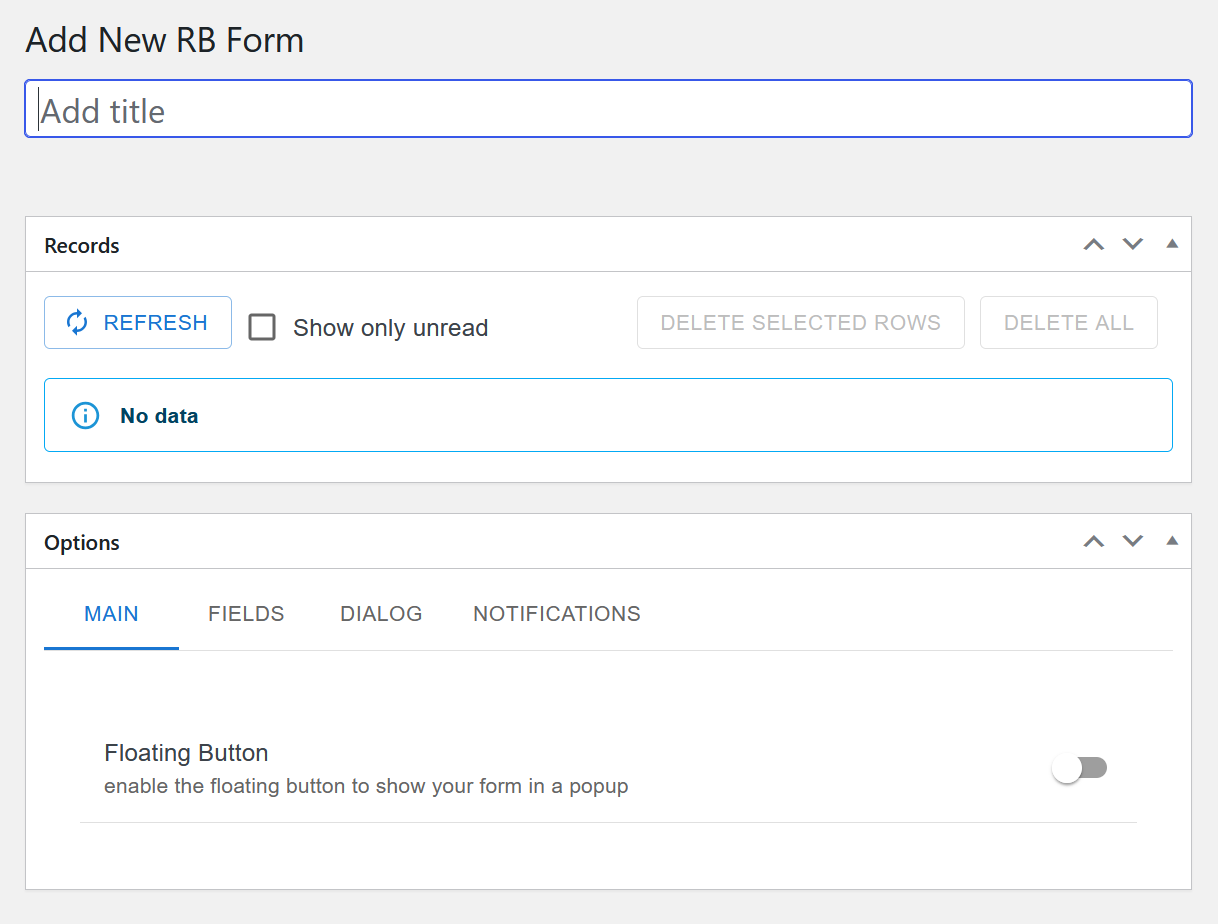
The form editor opens immediately after creating the form.
Each form consists of several main sections:
The title is used internally in the admin panel and helps you identify the form in the list.
This section displays all submissions sent through the form.
Before the first submission, it will show an empty state.
Available actions include:
This is where the form behavior is configured. The panel is organized into tabs:
Forms RB allows visitors to access forms using a floating button displayed on the website.
After configuring your form:
Once published, visitors will see a floating action button on the page. Clicking it opens the form in a modal dialog without leaving the page.
When a visitor submits the form:
Clicking a record opens a detailed view with all submitted data.
Inside each form, you can:
All submission management is handled directly in the WordPress admin — no external services required.
Now that you’ve created your first form, the next steps are:
Continue with:
Build faster, cleaner, and more reliable WordPress websites using lightweight plugins designed for real-world workflows.
Get started now